


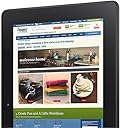

Kindle Fire HDX 8.9", HDX Display, Wi-Fi, 32 GB - Includes Special Offers (Previous Generation - 3rd)
Product ID: 177892
⚡2.2GHz quad-core
📱8.9" HDX display
📸8MP rear camera
📚 Elevate your reading experience with the ultimate tablet companion!
The Kindle Fire HDX 8.9" features an exclusive HDX display with a remarkable pixel density of 339 ppi, powered by a robust 2.2GHz quad-core processor. Weighing just 13.2oz, it offers a lightweight design for on-the-go convenience. Capture high-quality images with its 8MP rear camera and enjoy video calls with the front-facing HD camera. Plus, with the innovative 'Mayday' button, live tech support is always just a tap away.
M**R
Excellent Screen Display and All Around Nice Tablet
To sum up what I will tell you about in the details below, for $379 you are getting a good deal on a large tablet computer - especially if you compare it to the $399 for last year's base unit of the first-generation 8.9” Fire HD and the $500 or more you can spend on a Wi-Fi base version of the iPad; if your pocketbook can afford it, I would recommend upgrading to the one with 64 GB of memory. Overall, if you consider the price and the functionality I think this is a great tool / toy if you watch a lot of video or play a lot of games on your device: the video quality is outstanding and you can really tell a difference between this and last year’s 8.9” HD Fire. If you are a first-time tablet buyer looking for the larger screen size, or where price vs. value is a key consideration, I'd recommend the "regular" Kindle Fire HD that is only $269. If you're comparing last year's 8.9” model to this version and it is operating fine, I'd say save your money and continue to get your money's worth out of that one because other than screen size, for what I am using it for, I can only tell the difference between the video playback and playing a couple of games. I’ve been playing with this for over a week now, and my review below compares a lot of the features of this version of the 8.9” Fire HDX to the original 8.9” Fire HD as well as this year's model of the “regular” Fire HDX, but also some of the features for a first-time user. Initial setup of this year's model of the 8.9”Kindle Fire HDX was pretty easy – that’s saying a lot as this year’s versions of the various models had significant crashing issues due to operating software updates. While this unit did update the operating software, it ran quietly in the background with no issues at all. Screen Display / Video Playback: If video is your thing, this version of the Fire has the absolute best screen display of any Fire model to date: I’ve been comparing various episodes of the first season of the “Breaking Bad” TV show to each of the previous Fire models and I am very impressed at the picture quality. Looking at the technical specs Amazon made some major changes in the display / resolution, and the picture appears more crisp. The display on this Fire was one heck of a lot better in terms of sharpness than last year's model as well as this year's model of the Fire HD. For you technical folks out there, the display is 2,560 x 1,600 (25% better than the HD version of the 8.9” Fire) with 50% more pixels per inch at 339 ppi than the 8.9” Fire HD. Wi-Fi Connectivity: It was fairly easy to connect to the Internet via Wi-Fi. My standard test for trying out new gadgets is to see how fast they run side-by-side with a known piece of equipment doing the same test at the best place of Wi-Fi in my house and the worst place where it drags. In this comparison, I had this HDX version sitting next to last year's HD version and this year's version of the 7” HDX Fire, Motorola RAZR smartphone, my iPad (yes, the Kindle guy uses an iPad for work), and the first-generation 7" Fire (the model from two years ago) all just using a Wi-Fi connection vs. cellular connectivity. My "normal" website test is to hit the mobile websites of CNN, FoxNews, my personalized Yahoo page, Google, and the Houston Chronicle. The ones that were usually slow on the other devices were faster on the HDX (Houston Chronicle and CNN), and for the other sites I couldn't tell a difference in speed at the location closest to my router. When I went to the slowest / worst reception location of my house, the speed did have a slight difference in the other devices as this one was a little bit faster than all but last year's model of the 7" Kindle Fire HD; yes, it was also faster than this year's model of the Fire HD but I attribute the increase in speed to the dual antennas on the HDX. Sound / Music Playback: The two speakers are located in the back of the Kindle Fire in two not-noticeable ports: one on the top and one on the bottom. My usual test of this feature is cranking up Van Halen's Panama to maximum volume (I always want to see if it could really play the guitar licks and hear the bass), and I would alternate covering one speaker up over the other: you have true stereo sound with no degradation of the sound that makes you think you are about to blow the speaker. The Dolby speakers sound nice and you do get to hear the bass. However, I am still of the opinion the speakers aren't going to do very well being placed in the back as I am in the front: I want to be able to hear whatever I am listening to without really having to crank it up and disturbing someone else in the room (that's what happens when you start losing your hearing like I am). To have the sound throw back at you, you need to have a cover on it as the sound reverberates from the back of the Fire off of the cover back to you (hopefully, you followed that). One thing to point out is there is not a default equalizer with this Fire: everything sounds the same. To get the most out of the bass and treble, as well as to turn down the mid-range, I highly recommend you downloading and installing one of the many free equalizer apps here from the Amazon app store as it makes a huge difference, especially if you are listening with headphones. The X-ray feature is pretty neat as it displays the lyrics on the screen if you are so inclined; if you are not, it is as simple as the tap of an icon to make the lyric feature go away. Email Setup: Consistent with previous versions of the Fire, email setup was very easy for my main Gmail account with the software came with the Fire. Previously, I had to install and use an existing app called Enhanced Email I purchased here in the Amazon app store because like many of you I have more than one email account: Amazon eliminated the need for this aftermarket app because you can now switch back and forth between your various email accounts and it was very easy to setup my particulars. The lazy person in me appreciates that as I don't like getting out of the lazy chair once I'm settled in! New Tabs and Screen Layout: In addition to the normal tabs Amazon has continued to make tweaks with the look and feel to the overall display such as more things to scroll through to find what you are looking for in an easier manner. Interestingly, and consistent with my experiences with this year's model of the Fire HD, I purchased the one with special offers and the only ad I have seen so far is on the main screen saver vs. being overwhelmed with ads like last year's model. The last tab on the top right contains a link to various deals on Amazon you can tap to open (or not) as you see fit. Reading Books: Turning pages is pretty darn easy - just tap the side of the screen to go to the next page or back a page, or you can swipe your finger across the screen to do the same. Amazon did add the feature to see the book's description for books on your device like they have with the e-Ink Kindle (always an annoyance with last year's model), which is a plus as I can't remember what each book in my digital to-be-read pile is about; getting to the book description, requires several taps on the screen to eventually get to where you want to be. If there is an easier way to do it, I can't find it and maybe I should be one of the first guys, ever, to crack open the electronic user's manual to figure it out (doubt it). For those of you who have wondered, you still can't organize your books into categories unless you purchase a third-party app here in the Amazon app store. Bluetooth There is a Bluetooth connection, and I did my usual test of this feature by taking it out to my car and having the Fire stream music through my car stereo. There were no delays or skips with the connection, and it paired up in about a minute. Just make sure you give it a device name so you can recognize it and be recognized. Camera: There are two cameras on this model - one faces the front or toward the user / reader and one in the back. Focusing and taking a picture is pretty easy, and Amazon will by default store your pictures in the Cloud - which counts against your storage allotment. I'd recommend turning that automatic storage feature off unless you are sure you want it, because if you go over the limit that will provide Amazon another opportunity to collect a monthly revenue stream from you. I really don’t like the positioning of the back facing camera – primarily because if you use the Origami cover purchased here from Amazon (about the only one available as I type this review), the cover hides not only the camera but the LED flash. That makes the back camera essentially worthless to me. Game Apps: Playing most of the games I play on my tablet is a much better visual experience than the 8.9” HD model. Now if this device would help me move up faster with Candy Crush I would be even happier! Charger: Unlike previous models of the Fire, this one DOES include a charger! Better yet, it is the “power fast” charger that charges your Fire faster. If you're scratching your head with that comment, in previous models you had to purchase a charger separately for $20 which always seemed kind of silly for Amazon to do. Amazon touts it takes about 5 hours to charge this version of the Fire when the battery is completely empty. I’ve charged it several times when it was in the 20% - 22% remaining charge, and it took about six hours. "Mayday" button: A new feature with this model, and not included on this year's "regular" model of the Fire, is the introduction of the "Mayday" button. Basically, you can touch the button and a video screen will pop up and you can actually see - and talk to - a live customer service agent. I pressed the button but felt pretty dumb: when the person who answered asked me how can they help, I basically said "Hi, I just wanted to see if this works and just stopped by to say `hi' for purposes of this review." They laughed and I promptly let them get back to work answering other “I just wanted to try this out” queries. What I Wish it Had: a screen protector that was ready to go. With all of the tapping, sliding, etc. on the screen, you can easily scratch the unit. The screen protectors have been out of stock for a while now and I hope mine gets here soon. Overall, I think this is a good deal for someone who really uses the video / apps feature. Kids will love it as they can read books, play games, watch TV and movies, and a whole lot of other things. Adults should like it for the exact same reasons, but while I try to minimize the amount of work-related stuff I do at home with the business apps that are available here in the Amazon App store and other places around the Internet I can also work on Excel and Word-compatible files when I have to without having to fire up my work laptop or whatever the case may be. If you've never owned a tablet before, or are looking to upgrade from an earlier model Fire, I would recommend this one if video and apps are your thing - but I would recommend you purchase the higher memory one vs. the minimum 16 GB. If you're comparing last year's HD model to this version and it is operating fine, or looking for a tablet for your younger children, I'd say save your money and continue to get your money's worth out of last year's model or get this year's model of the 8.9” Fire HD at $269.
A**B
Miracast and other misc.
So, I love my new Fire HDX (64Gb, wifi only with ads), but all the positives have already been reviewed at length by others, so I will concentrate on what I have not yet seen discussed elsewhere in a lot of detail: 1) Display mirroring (with Miracast). I got the NETGEAR Push2TV Wireless Display HDMI Adapter - Miracast and WiDi (PTV3000) and finally managed to make it work, no thanks to Netgear who have just lost a customer. Well, not really since I never bought a Netgear product before and arguably I didn't this time either as I bought it refurbished, but still. Installation issues notwithstanding, after it started working, it was pretty amazing. I tested the Miracast functionality successfully with both my Win8 laptop and my Kindle Fire HDX. Yes, there is a very slight lag, but nothing major and I suspect the technology will only get better what with the rate of the firmware updates being pushed out by Netgear for this product, trying to keep up with their competition which I think will be fierce now that Amazon has put its weight behind the Miracast technology by doing away with the HDMI output port entirely in the Fire HDX models. Which means that if you are emotionally attached to using an HDMI cable to connect to your external screen or TV, or just do not want to put up with the potential pain in the neck the installation of the PTV3000 may turn out to be (though to be fair, some people had no trouble whatsoever?), you will want to stick with the HD models instead. If you are excited about Miracast and want a WiDi adapter for your TV, use some caution, because as my review of said item demonstrates, it can be a hassle to setup. A cheaper alternative is the Tronsmart T1000 Mirror2TV Wireless Display HDMI Dongle which performance is unfortunately not as good as the PTV3000 (noticeable time delays and pixelation when mirroring and requires use of their free proprietary app, EZCast ). 2) Customer service. I have never seen any company spend so much time and effort into ensuring customers were happy with their flagship product (the Kindles, I mean. When it comes to every other product and services, they are just as impersonal and crushing as you would expect). I have rarely -if ever- had to contact Amazon with any of my Kindle issues before, but I was forced to contact an Amazon representative three times since my HDX arrived and each rep was unbelievably polite, helpful (and downright nice! all three of them! What?) and went to extraordinary lengths to resolve my issues (minor hardware problems - I'll update this review upon final resolution). [UPDATED: my issues were resolved very satisfactorily, all it took was the guts to call Amazon support in the first place... All the customer service reps I spoke with -all 6 of them by now!- were helpful, patient, reasonable and even technically competent!? I don't understand this minor miracle, but it's certainly no coincidence and I was very glad to be able to take advantage of it. This great level of customer support is available for all your Kindle issues, not just HDX models, by the way]. One of my calls was made while testing the Mayday feature and I was stunned by how amazingly good the concept and execution of this idea was! Kudos to Jeff Bezos, this new feature is brilliant and will gain him major customer loyalty, especially among the older set (this is not meant to be insulting as I am no spring chicken myself). 3) Accessories. This tablet is a thing of beauty and a joy forever, granted, but it is also a fingerprint magnet -especially its display which is a touch screen, of course- and the rubberized back, which was so convenient and comfortable in the 7" original Fire, seems to have become a sponge for natural skin oils with the 8.9" HDX model? Fingerprints are everywhere and stay obstinately attached to every surface, not just the display, and personally I never figured on wiping them off as a full-time occupation. My solution? DecalGirl skins (check their website for a dazzling number of choices or why not, the original DIY look: DecalGirl Skin - 'Create Your Own' ): no, I do not work for them, I just spend a lot of time and as little money as possible trying to get the right accessories for my Kindles. They are a tad expensive ($20), but they are unbelievably easy to apply, of superior quality, extremely durable, come in a huge variety of designs from colorfully eccentric to classically elegant and DecalGirl often offers up to 25% discounts on their website. They will keep your Kindle looking and feeling like new. Note that most cases easily fit over these skins but remember that if you also want a screen protector (I did!), it should be applied before the skin is applied to the body of the Kindle (front and back). By the way, covering the front of the Kindle (the bezel around the screen) makes holding your Kindle a lot more comfortable... This is no ad for DecalGirl: if you prefer one of their competitors (for instance: MightySkins Protective Skin Decal Cover ), do your research and go for it, I am merely pointing out that I believe getting a good quality skin for your HDX is more important than buying a case. Also a lot cheaper than an Origami case, Amazon's preferred solution which at $50+ is just too rich for my tastes (sorry, this bon mot was just too easy)! Speaking of accessories, since I cannot recommend any one case wholeheartedly, I can at least recommend the Targus Mini Stand (AWE65US) . It's surprisingly practical and elegant for a simple block of transparent acrylic! Designed for any smartphone or tablet up to 10", it's perfect if you like watching videos on your HDX from a desk or a table rather than balanced in your lap. 4) Downloading videos. The limitations mentioned in B. Tarbuck's review could be a problem for everyone who purchased the 64Gb model with the new downloading features in mind, which was my case... but a few months of heavy usage later, I can confirm that the points he raises are not necessarily a big deal. - First, you'll want to keep in mind that not all Prime videos are available for download as licensing rights limit what Amazon offers and which videos are Prime and downloadable is liable to change without notice. - Second, there is indeed a 25 downloaded videos maximum at any given time which personally I find is acceptable, even though I would have preferred to have heard about it beforehand rather than discover it afterwards. - Third, the Viewing Period limitation (48 hours or so depending on the video) is a lot easier to swallow when you realize it only starts applying to videos once you start watching them. So the Viewing Period limit is actually quite comparable to the Lending Library's limitations: you just need to remember that Prime Videos are not available for streaming while you are traveling outside the US which is why you need to download them to your Fire HDX before leaving the US. Or if you are an overseas customer: yes, this IS discrimination! Just kidding, it's due to the same licensing rights limits referred to above which Amazon negotiates with the content owners (Warner, Fox etc.) themselves, ie the same people who insist on different DVD regions etc. [IMPORTANT: the 'Viewing period' limit actually applies only once you've STARTED watching a video. As long as you simply keep your downloaded videos on your Kindle Fire for later viewing without starting the playback of the file, the Viewing Period limit is irrelevant. Now, that's more like it! :) ] Personally, I invested in the 64Gb model because I am often in the position of traveling overseas for months, with very little personal internet access. Let's not get into a discussion of what most hotels overseas -ahem UK, I am looking at you here, not that Italy or Germany or Japan have a leg to stand on either- think is 'free internet access' or the availability of English-speaking entertainment media outside the US. Can you believe that some countries expect you to understand their own non-English language to get your entertainment?! Just joking: English is not my native language... My point stands, however. Therefore purchasing the 64Gb model may be worthwhile if you like to load up your Kindle with lots of videos in preparation for a long overseas trip: just remember that once you start watching a video, a fairly short Viewing Period time limit starts running - about 48 hours (more or less depending on the movie/show in question). This is similar to the time limit you run into when downloading Prime Videos to your PC or renting vs. purchasing movies from Amazon, by the way... Please also note that movies and TV shows take up a huge amount of space when downloaded from Amazon, even when you do not choose the HD version, compared to your own personal videos (ripped from your own DVDs, I mean) which usually take up no more than 1 or 2 Gb per movie. Plus, your own videos have no such intrinsic Viewing Period time limit and can be re-watched as often as you want, forever, just like the videos you actually purchase from Amazon. Remember, if you are willing to actually pay money to purchase a video from Amazon, you can then download it to your device at any time (while you are in the US), and keep it on the hard disk of your Kindle Fire -and any other Kindle Fire you own, past and future- forever (or you can re-download it repeatedly). Which is what Amazon is hoping we'll do, in fact... That's the whole point of selling the Kindles at near cost, after all. One more relevant item of information when it comes to choosing your Fire HDX hard disk size: the micro USB port is not OTG compatible, so you cannot simply use an OTG USB key (like this little beauty for instance: Patriot Stellar Series 64GB USB 3.0 OTG - PSF64GSTROTG ) to easily increase the size of your Fire HDX hard disk. Oh well... 5) non-Amazon content and apps: let's just reiterate a few points which most official reviews I have seen rarely make. - you can totally get non-Amazon apps from the Google Play store. Or any reputable website, as long as you are careful and do a bit/a lot of research first if you don't want to be sorry later. Download the .apk file (all Android apps are really files with an apk extension), then transfer it to the appropriate folder on your Kindle. Opening the apk file then installs the app on your Kindle Fire and the app will afterwards appear in your Fire's Apps section. It's that easy! This simple process is called sideloading and no, it's not difficult or complicated and does not require rooting and does not invalidate your warranty or anything: the internet is full of simple how-tos on the subject, just begging to be read. And Amazon is perfectly fine with your sideloading non-Amazon apps, especially free apps. Obviously Amazon will not refer to it or explain how to do it and they will avoid even mentioning it, but Jeff Bezos is well aware that lack of flexibility on this issue would be a deal breaker, even if he'd rather not admit as much officially. Which is why it's a fairly straightforward process, even though it would have been quite easy for Amazon to prevent us from sideloading non-Amazon apps. - you can easily get non-Amazon ebooks (pdf or epub or any other commonly used ebook format, free or otherwise - B&N etc.) to your Kindle: just install the Calibre software on your computer and it will handle all the format converting and transferring to your Kindles, from the oldest Kindle e-reader to the latest HDX. Plus lots of other neat and amazing features, including tagging or helping with the rental of ebooks from your public library system. Calibre is free, it's got heaps of documentation and technical help, it's regularly updated and it can and will handle your whole ebook collection beautifully while synchronizing all your e-Readers easily. It's like iTunes for ebooks! If iTunes was easy to use, efficient, inclusive of formats and platforms. And came with helpful free add-ins like Firefox does. And did not lose your full media library the way iTunes loses mine all the time. - comic books/graphic novels/mangas and magazines in pdf format. This is a seldom mentioned advantage of the 8.9" HDX: its larger screen size and higher resolution makes it a great way to read comics in pdf format with the built-in pdf reader! It's a bit less practical in cbr or cbz format (as opposed to reading comics on a PC where using a free cbr/cbz reader is best), but easily doable and well worth it for facing the hours of tedium that travel often requires. No need to use a comic book reader app, especially since the best such apps are not free, if your comics are in pdf format! But if your non-pdf comics library is just too extensive to convert, then you can check out ComiCat which costs $2.99: it handles most comic formats, organizes your collection nicely on your Kindle HDX and allows easy synchronization with cloud services like Dropbox, which is pretty nifty - compared to having to copy your comics files to your HDX yourself. - other external content (music, photos, audiobooks and videos): nothing is to stop you from ripping your favorite DVDs and CDs (reliable free and paying tools are all around you) and transferring them to your Kindle Fire. It's even easier with an HDX than ever before! I've been doing all of the above since the Kindle Fire 1st gen all the way to the HDX without any trouble via the USB port of my computer: a simple USB to micro USB cable -the same type of cable you use to recharge your Kindle- and you're all set! Or send your ebooks attached to an email to your Kindle's email address: Amazon Help pages are full of detailed descriptions about it... this email method incidentally lets you share your non-DRM ebooks with your friends and family simply by emailing them with your ebook. Assuming their own Kindles have been set up to accept documents from your email address - this last requirement is a security measure to avoid spam. Personally, I use this nifty 'sending books via email to a Kindle device' functionality to guilt my relatives into reading edifying books I think they would benefit from (passive-aggressive stuff about healthy diet, exercise and the like... ) and it helps with their insomnia issues, if nothing else! Google will lead you to numerous helpful how-tos explaining which folder you should copy your video/audio files to on your Kindle Fire and which free apps to use if for some reason you do not want/cannot use the default app. Videos and Photos will show up in your gallery under your Photos section and your uploaded music and audiobooks, naturally enough, in your Music section. If your files are in a format your Kindle Fire cannot open and you don't want the headache of having to convert your files, just use one of several apps that open most files: personally, I use ES File Explorer to navigate the hard disk of my Fire and open all my non-Amazon content. You can also check out MoboPlayer which plays any video file format, not just only mp4 files like the Fire default video viewer app. These two apps are both available free on the Amazon app store and are very popular for good reasons. Again: all of the above in point 5 works for all Fire models, not just the HDX. 6) On a different, UNRELATED topic: if for some reason you want to root your Amazon Fire in order to run the non-Amazon version of Android and be able to control the look and feel and functionality of your tablet, please be aware that you will lose all Prime membership advantages on this Fire tablet (though not on your computer or any other Fire you may own). Such as free Instant Prime Videos and the Lending Library. And Mayday functionality, also a bonus of the FireOS. I just want to emphasize the fact that sideloading has nothing to do with rooting: the amount of ignorance and misinformation floating about this topic is simply astonishing. And by the way, I really don't recommend rooting a Kindle Fire, though yes, technically speaking, it is doable. By anyone with nerves of steel. And at least several hours of free, preferably uninterrupted time for in-depth research beforehand... Just be prepared to take responsibility for the waste of hundreds of your dollars if you do brick your Kindle device.
Trustpilot
2 days ago
1 month ago